Pan drag UIView on UIBezierPath curve
This article covers the one of the solution to pan the UIView along the UIBezierPath curve with UIPanGestureRecognizer. It’s code written in Swift 3, Xcode 8.3.2
Let’s look at the output before going into details.
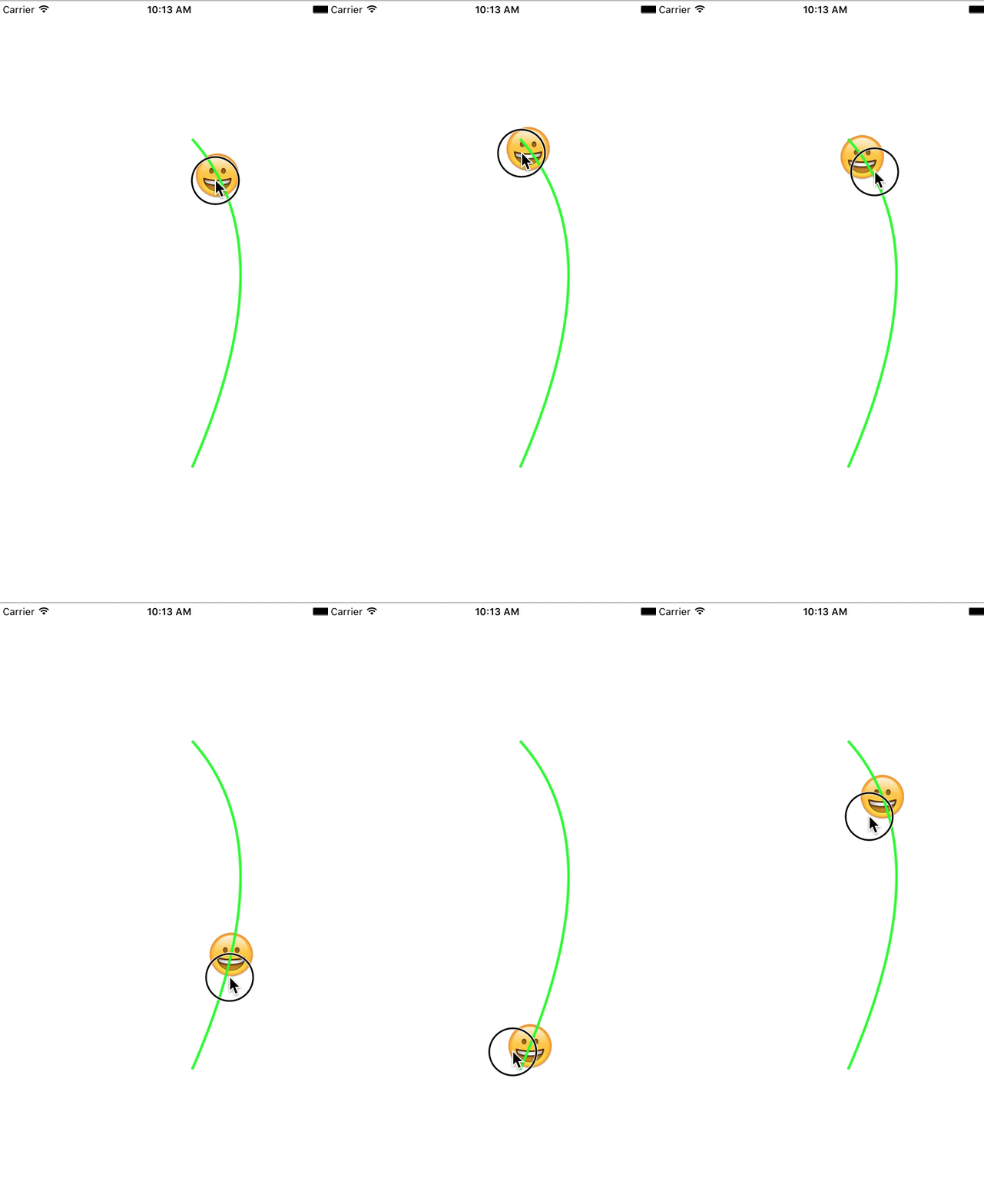
Requirement:
There are several examples you can find on stackoverflow on how to animate the UIView on the UIBezierPath. But there are not many examples that show how to move the object along the path with user touch, pan interactions. So here, we discuss the possibility of it.
Limitation:
This code works with the assumption that the bezier curve Path flows in a linear curve. i,e there is continuous increase or decrease in either X or Y axis while drawing the curve. The output.gif show the sample curve that has continuous increase from start to finish on Y axis.
How to code:
Let’s draw the UIBezierPath with QuadCurve which takes start point, end point and the control point.
   /*
     Draw BezierPath Quad curve and get the path.
     */
      func drawBezierPath() {

        let maxLeftPoint = emojiView.center
        p0 = CGPoint(x: view.center.x + 30, y: view.center.y - 200)

        p2  = CGPoint(x: view.center.x + 30, y: view.center.y + 200)

        p1 = CGPoint(x: halfPoint1D(p0: p0.x, p2: p2.x, control: maxLeftPoint.x),
                          y: halfPoint1D(p0: p0.y, p2: p2.y, control: maxLeftPoint.y))

        bezierPath.move(to: p0)
        bezierPath.addQuadCurve(to: p2, controlPoint: p1)

        let shapeLayer = CAShapeLayer()
        shapeLayer.path = bezierPath.cgPath
        shapeLayer.fillColor = UIColor.clear.cgColor
        shapeLayer.strokeColor = UIColor.green.cgColor
        shapeLayer.lineWidth = 3.0
        view.layer.addSublayer(shapeLayer)
        emojiView.translatesAutoresizingMaskIntoConstraints = false

        //Store the max Y distance covered by UIBeziurePath. It will be useful to calculate the intermidiate point on curve
        // at the distance y from the start point po
        bezierPathYMax = p2.y - p0.y

    }


    func halfPoint1D(p0: CGFloat, p2: CGFloat, control: CGFloat) -> CGFloat {
        return 2 * control - p0 / 2 - p2 / 2
    }
1) Created Quad curve and stored the start point p0, end point p2 and control point p1. We called drawBezierPath() in viewDidLoad()
bezierPath.move(to: p0)
bezierPath.addQuadCurve(to: p2, controlPoint: p1)
2) emojiView is the view that we are going to drag along the UIbezierPath.
3) In viewDidAppear – we set the emojiView center to the starting point the curve and also store the starting emojiView position.
 override func viewDidAppear(_ animated: Bool) {
        //set the emojiView center at random point on Bezier path. Setting the starting point here
        emojiView.center = p0
        //store the initial position of emoji
        emojiCenter = p0
    }
4) Add the UIPanGestureRecognizer to the view.
  let dragPan = UIPanGestureRecognizer(target: self, action: #selector(dragEmotionOnBezier(recognizer:)))
        view.addGestureRecognizer(dragPan)
5) Now comes the points calculation part. If it takes 1 unit time to draw the beziere path. Below method gets the (x,y) point at the specific time interval between 0 & 1. Big thanks to Eric Sudan for the idea @ http://ericasadun.com
    /* Refered from http://ericasadun.com/2013/03/25/calculating-bezier-points/
     - params: start point, end point, control point and the time drawn factor between 0 to 1.
    */
    func getPointAtPercent(t: Float, start: Float, c1: Float, end: Float ) -> Float {
        let t_: Float = (1.0 - t)
        let tt_: Float = t_ * t_
        let tt: Float = t * t

        return start * tt_
            + 2.0 * c1 * t_ * t
            + end * tt
    }
This method needs to be called twice one for x point and again for y point.
6) Here is the final part on how to drag
 func dragEmotionOnBezier(recognizer: UIPanGestureRecognizer) {]
        let point = recognizer.location(in: view)
        let distanceY = point.y - emojiCenter.y
        // get the value between 0 & 1. 0 represents and po and 1 represents p2.
        var distanceYInRange = distanceY / bezierPathYMax
        distanceYInRange = distanceYInRange > 0 ? distanceYInRange : -distanceYInRange
        if distanceYInRange >= 1 || distanceYInRange <= 0 {
            // already at the end of the curve. So need to drag
            return
        }
        // get the x,y point on the beziere path at a distance distanceYInRange from p0.
        let newY = getPointAtPercent(t: Float(distanceYInRange), start: Float(p0.y) , c1: Float(p1.y), end: Float(p2.y))
        let newX = getPointAtPercent(t: Float(distanceYInRange), start: Float(p0.x) , c1: Float(p1.x), end: Float(p2.x))

        // set the newLocation of the emojiview
        emojiView.center = CGPoint(x: CGFloat(newX), y: CGFloat(newY))
    }
First we get the location of the pan in the view. Then calculate the distanceYInRange based on the Y difference of the panned location and the starting Y location. We can obtain the (X,Y) on the bezier curve using getPointAtPercent method. Las step is to change position to emojiView to new location.
The complete code in this article is available at github. For any questions, feel free to comment. Happy coding!!

Passionate about learning new things. Loves coding and problem solving. Built apps from scratch on iOS platform with Swift, Objective – C, HTML 5, javascript, Cordova, Xamarin using both MVC and MVVM. Coded extensively in .Net and Database technologies before moving to mobile development.
Spends free time playing with my kid and watching TV.